

Your website loads. The homepage looks right. As far as you can tell, everything is working.
So when someone asks which PHP version your WordPress website uses, it is tempting to put it in the “something for the developer” basket.
Here is why it deserves a moment of your attention: PHP is part of the software running your website. Keeping it maintained helps protect the website your customers use to inquire, book and buy. You can check which version your site uses without writing a line of code.
This guide walks you through that check, explains the current security update, and gives you a message you can copy to your developer or hosting provider. You will also find a checklist for making sure your website still works properly after the update.
Short on time? Here is the whole job in three steps.
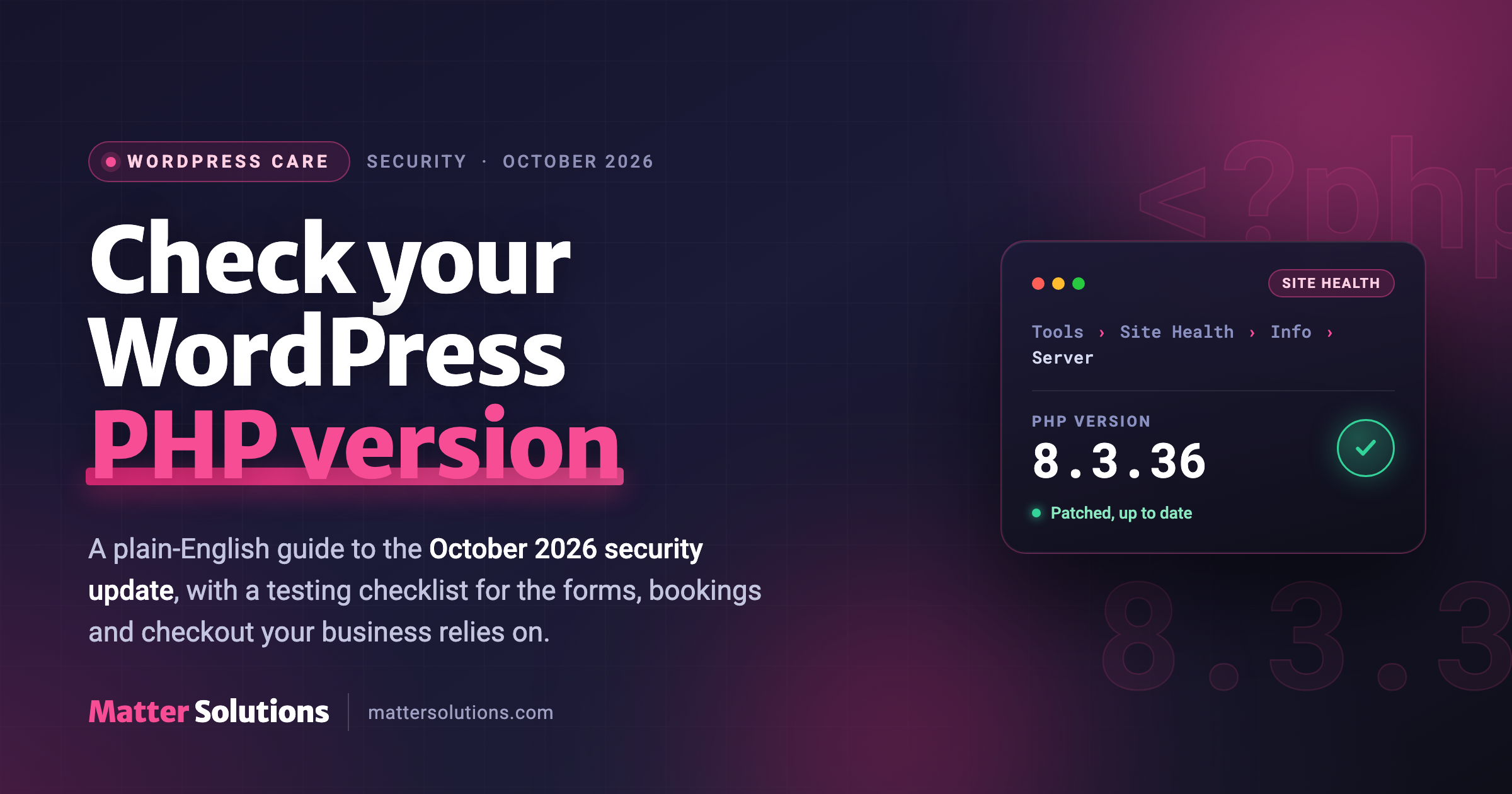
- Check your version in your dashboard: Tools, then Site Health, then Info, then Server. It takes about two minutes and changes nothing.
- Send your host or developer one message to confirm the version serving your live site has the October 2026 security fix.
- Test the things that matter after any update: your inquiry forms, bookings and checkout.
The fix is in PHP 8.2.35, 8.3.36, 8.4.27 or 8.5.12. If your version is lower than the one for your branch, you are not patched yet.
The October 2026 PHP security update
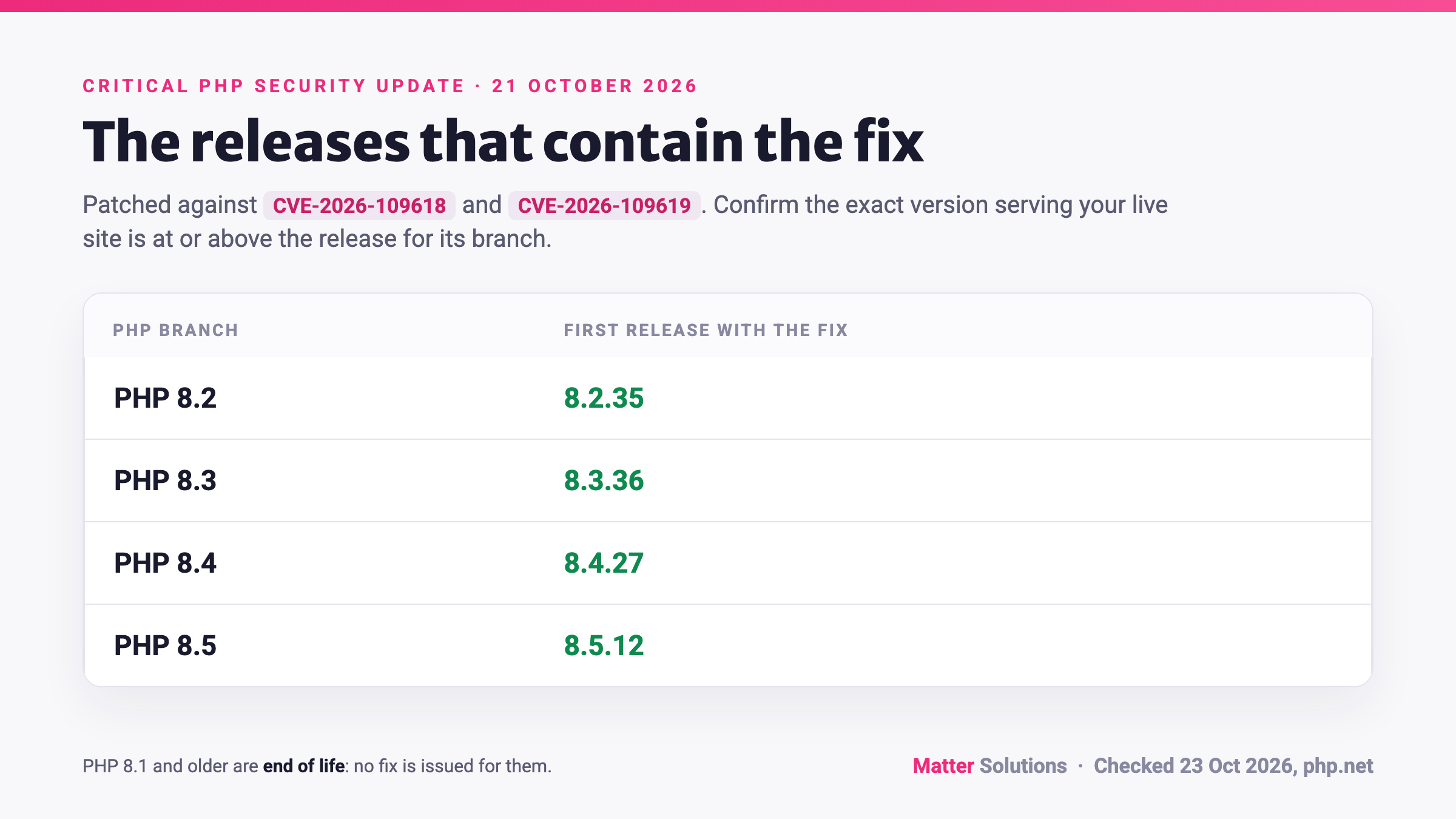
On 21 October 2026, the PHP project released security updates addressing two critical vulnerabilities, CVE-2026-109618 and CVE-2026-109619. Under certain conditions, these vulnerabilities can allow an attacker to run code on a server without signing in. The PHP Foundation urges PHP users to update. [1]
The US Cybersecurity and Infrastructure Security Agency, known as CISA, has also issued a critical alert. Its advice includes making an inventory of the systems that run PHP, applying the patch immediately and monitoring for suspicious activity. [2]
For a business owner, the immediate action is to ask your hosting provider or developer to confirm that the relevant security fixes have been applied to the PHP installation actually serving your website.
“We use PHP 8” is too broad an answer. You need the full version number, or confirmation of an equivalent fix supplied by the hosting vendor.
Checked on 23 October 2026: the releases fixing these vulnerabilities are listed below. Later patched releases within the same branch may supersede them. [3]
| PHP branch | Release containing the fixes |
|---|---|
| PHP 8.2 | 8.2.35 |
| PHP 8.3 | 8.3.36 |
| PHP 8.4 | 8.4.27 |
| PHP 8.5 | 8.5.12 |
How to tell if you are safe: the first two numbers of your version are your branch, so 8.3.31 is on the 8.3 branch. Check that your full version is the same as, or higher than, the release shown for that branch. If it is lower, or you are not sure, send your developer or host the message further down this page.

Some Linux distributions and extended support vendors apply security fixes to their own packages, so the number displayed may need interpreting by your provider. Ask for confirmation that the specific fixes are installed.
The PHP project no longer issues security updates for PHP 8.1 or older. If your website runs one of these end-of-life versions, there is no official fix for it, so planning a move to a supported branch becomes the priority rather than an option. [5]
What PHP does on a WordPress website
PHP is a programming language used by WordPress. It runs on your hosting server and helps WordPress process requests and generate website content. Your theme and many plugins also use it. [4]
Think about a visitor opening a service page, a customer viewing their account or a staff member using the WordPress dashboard. PHP can be involved behind the scenes, even though the visitor never sees the code.
You do not need to learn PHP to own a WordPress website. You do need someone taking responsibility for maintaining it, just as you need someone responsible for your domain renewal and backups.
That responsibility should be clear before an urgent update arrives.
How to check your PHP version in WordPress
If you have administrator access, you can find the version inside your WordPress dashboard. No extra plugin is required for this check. WordPress documents the following route. [4]
- Log in to your WordPress dashboard.
- Open Tools in the left menu.
- Select Site Health.
- Open the Info tab.
- Expand the Server section.
- Find PHP version and record the complete number.

For example, record “8.3.36” rather than shortening it to “8.3”. The final number matters when you are checking a security patch.
You are only reading information here. Checking this screen does not change your PHP version.
If you cannot see Tools or Site Health, ask your website administrator or hosting provider for the version. You may have a restricted account, or your dashboard may have been customized.
You can also ask your host to confirm the version serving your public website. This is useful when an account contains several sites or different PHP configurations. A version reported for another site or a command line tool does not establish what your own live website is running.
Which PHP versions are still supported
There are two things to check: whether your PHP branch still receives support, and whether the relevant security patches are installed.
As at 23 October 2026, the PHP project lists the following support dates. [5]
| PHP branch | Current support stage | Security support ends |
|---|---|---|
| PHP 8.2 | Security fixes only | 31 December 2026 |
| PHP 8.3 | Security fixes only | 31 December 2027 |
| PHP 8.4 | Active support | 31 December 2028 |
| PHP 8.5 | Active support | 31 December 2029 |
WordPress currently recommends PHP 8.3 or greater. [6] That recommendation is a starting point for compatibility planning. It does not mean every patch release of PHP 8.3 is current, or that every plugin on your site works with every newer PHP version.
If your site uses PHP 8.2, the approaching end of security support makes an upgrade plan particularly useful. Applying an urgent patch now and planning a move to a newer branch can be separate pieces of work.
Ask your provider which supported version suits your WordPress installation, theme, plugins and custom code, and when they recommend making that move.
Why this matters to your business
Software maintenance can feel a long way from the work of winning customers. The link becomes clear when you think about what your website has to do every day.
A prospective client submits a quote request. A patient books an appointment. A customer pays for an order. A campaign sends people to a landing page with an inquiry form.
Each of those journeys relies on the website working. If a technical fault breaks one of them, you can lose the sale before anyone in the office even notices.
For example, imagine spending $100 a day sending potential customers to a page whose form is failing. Over a week, $700 in advertising has sent visitors to a broken inquiry journey.
That is an illustrative example, not a prediction of what a PHP update will do. It shows why testing the form belongs in the maintenance job.
Security matters for the same reason. Your website is the face of your business, and it may hold customer information. A weakness still needs fixing even when the site looks exactly as it did yesterday.
A current version of PHP can also help performance, though the effect depends on the website. It is not a promise of faster pages or better rankings. If speed is one of your goals, measure it before and after the upgrade.
Why updating WordPress does not confirm PHP is updated
WordPress, themes and plugins have their own updates. PHP is maintained at the hosting level, and your host determines which PHP versions are available. [4]
This means an empty WordPress updates screen does not confirm that your PHP installation has received the latest security fix.
The reverse also applies: a PHP update does not tell you whether an abandoned plugin, weak administrator password or missing backup has been addressed.
Security is broader than any single update. For the wider picture, see our guides to WordPress security updates and protecting your WordPress website from security threats.
Ask whoever manages your site to explain what their service covers. If you pay separately for hosting and website maintenance, confirm who handles PHP patches, who checks compatibility and who tests the site afterwards.
Put a name against each responsibility.
Security patching and a larger upgrade need different plans
A quick security fix within your current PHP branch is one job. Moving an older site to a newer branch is a bigger one, and it can expose problems in old plugins or custom code.
Your developer should weigh up the actual change and how urgent it is. For the October vulnerabilities, PHP’s advice is to update straight away, so fit the testing and compatibility work around fixing it quickly. [3]
For a planned branch upgrade, our recommended approach is to work through the following steps.
Confirm the scope and recovery plan
Identify the live site, its PHP version and the intended target version. Take a current backup of the files and database, and confirm how recovery would work if something fails.
For a shop or booking site, plan for new orders and bookings too. Restoring an old database over a busy live site can wipe anything that came in after the backup, so agree how that information will be kept.
Check the parts your site depends on
Review WordPress, the active theme, plugins and custom functionality for compatibility with the target PHP version. Where updates are needed, plan their order and check their effect.
If an old component blocks the upgrade, ask for a specific explanation and a proposed fix or replacement.
“The site is too old” does not give you enough information to decide what to fund or when to act.
Test a representative staging copy
A staging site is a separate copy you use for testing. It should match the important parts of your live site closely enough for the checks to mean something.
Keep staging private and control outgoing emails, payment processing and connections to customer systems. Test data should not create real orders or send confusing messages to customers.
Staging lowers the risk, but it cannot prove every live connection will behave the same way. The live site still needs checking after the change goes out.
Apply the change and verify the live site
Have the provider apply the approved update and complete any required service restarts. Confirm the version or vendor package running on the live site, then check the customer journeys that matter to the business.
If a problem appears, the developer should investigate it against the recovery plan. Returning to a vulnerable version should not become the permanent solution to a compatibility issue.
What to test after a PHP update
Opening the homepage is a useful first check. It leaves plenty of important functionality untested.
Use this checklist with your developer and adapt it to your website. Record the date, tester and result so there is a clear record of what was checked.
- Inquiry forms: submit each important form and confirm the entry is stored where expected. Check that the notification reaches the correct recipient.
- File uploads: test an allowed file type and confirm the uploaded file can be accessed by the intended team.
- Bookings: complete a test booking, check availability changes and confirm the expected notifications arrive.
- Online purchases: test product options, cart, shipping, payment and order confirmation using an agreed test method.
- Customer accounts: check login, password reset and any restricted content customers rely on.
- Business integrations: confirm test inquiries or orders reach the relevant CRM or other connected system.
- Key pages on mobile: check menus, page layouts, buttons and important landing pages on a phone.
- WordPress administration: confirm authorised staff can log in, edit a page and save changes.
- Tracking: where applicable, confirm the test action reaches the reporting system and avoid counting it as a genuine lead or sale.
Want a copy to keep? Download the one-page version below, print it or send it to your developer, and tick each item off as you go.
Ask the technical team to check relevant error logs as well. A page can appear usable while generating errors that deserve investigation.
For a complex or commercially important site, consider having another person check the critical journeys. Give that person a clear checklist and responsibility for recording the result.
“Someone else will look” is an easy way for testing to remain unfinished.
A message you can send your developer or host
Copy the following message and adapt it to your website. It gives your provider a clear request and helps you get a useful response.
Hi team,
Please confirm the full PHP version currently serving our live WordPress website and whether the security fixes for CVE-2026-109618 and CVE-2026-109619 have been applied. If you use a vendor package with backported fixes, please confirm that package is patched.
If action is still needed, please explain the immediate remediation plan, any compatibility issues and the expected timing.
Please also confirm which important functions have been tested after the change, including inquiry forms and any bookings or checkout. For forms, please check both submission and receipt of the notification.
Once complete, please send the live version or package confirmation, the test results and any remaining issues with an owner and expected completion date.
Thanks.
Common questions about WordPress PHP updates
Can I check my PHP version without installing anything?
Yes. With the appropriate WordPress access, go to Tools, then Site Health, then the Info tab, then Server, and record the full PHP version. If that information is unavailable, ask your administrator or host. [4]
Will my hosting company handle the update automatically?
That depends on your provider and service. Ask them to confirm what has actually been applied to your live website. A general statement that hosting includes updates is less useful than a dated confirmation of the relevant patch and installation.
Should I choose the highest version in the hosting menu?
Have your developer confirm a supported, patched version that is compatible with your site. A hosting menu can include versions intended for testing, or versions your plugins have not been checked against.
Does the padlock mean my PHP version is secure?
No. The browser padlock relates to the encrypted connection to the website. It does not establish whether the server has received a PHP security patch. Check those separately.
Does this mean I need a new website?
A PHP update alone is not a reason to rebuild. Ask for the actual compatibility findings. A maintained website may need a straightforward update, while an older site may need specific components repaired or replaced. Make that decision from the evidence.
What if the website has already been compromised?
Ask for an incident response assessment as well as patching. Updating the vulnerable software does not establish that unauthorised files, accounts or other changes have been removed. Your provider should explain the investigation, recovery work and any further actions needed.
Get help keeping your WordPress website working
You have a business to run. Your website should help customers take the next step, and you should be able to get a straight answer about who keeps it maintained.
That is where we come in. At Matter Solutions we look after WordPress websites for businesses across the United States through our hosting, security and maintenance services. On the sites we host, applying PHP security releases like this one is part of the job we handle for you, so you are not the one chasing your provider when the next alert lands.
Not hosted with us yet? We can still sort this one out. Give us full access to your current hosting and we can confirm your PHP version, apply the security update and test that the important things still work, as a one-off piece of work.
If you would rather never think about this again, ongoing care and maintenance is something we provide on the websites we host, so we can also talk about moving you across. Either way, send us your website address and what you know about its PHP version, and we will come back with what is involved and what it would cost.
Ongoing support and maintenance is provided on websites hosted with us. One-off work on a site hosted elsewhere needs full access to your current hosting.
Sources
- [1] The PHP Foundation, security release announcement, 21 October 2026. thephp.foundation
- [2] US Cybersecurity and Infrastructure Security Agency (CISA), Critical Vulnerabilities in PHP Require Immediate Patching, 21 October 2026. cisa.gov
- [3] PHP project, security release archive, 21 October 2026. php.net/archive/2026.php
- [4] WordPress, guide to checking and updating PHP. wordpress.org/support/update-php
- [5] PHP project, supported versions and support dates. php.net/supported-versions.php
- [6] WordPress, recommended hosting requirements. wordpress.org/about/requirements
Need help with your digital marketing?
Book a free strategy call and let's discuss your goals.
Book a Strategy Call